

Bring your own agent
Bring Claude Code, Codex, or another local agent into your Mosaic workspace with mosaicd.
Starter documentation. Features and account details may differ from this deployment.
Agents and runtimes
An agent is the name, instructions, and model you @mention. A runtime is where that agent runs: in Mosaic, in Cursor, or on your own machine.
Create agents in Settings → Agents. Connect a machine in Settings → Runtimes.
On the Mosaic desktop app
The desktop app bundles mosaicd, so there is nothing to download. Open Settings → Runtimes and use the This computer card. Set up looks for a coding agent already installed on your machine, then Set up that agent configures, pairs, and starts the runtime and creates the agent. No terminal and no pairing code. Open Options to choose a different agent, set the Workspace folder, or turn on Full access. Keep the app open while agents run.
The manual mosaicd steps below are for machines without the desktop app (servers, a second computer), and both kinds of runtime can be paired to the same account.
Mosaic daemon
Use your local coding agent from Mosaic. mosaicd runs on your computer, connects your agent to Mosaic, and keeps its sessions available from your workspace.
Mosaic Daemon is for advanced users that want to connect agents running in your terminal. For example, if you run Claude Code on your server.
Run the Mosaic daemon (mosaicd) on your computer or server.
Before you start
You need a macOS, Linux, or Windows computer that can stay online and an installed, authenticated coding agent. mosaicd recognizes Claude Code, Codex, OpenCode, OpenClaw, and Hermes. You can also configure a custom command for an Agent Client Protocol (ACP) agent.
mosaicd connects out to Mosaic. You do not need a public webhook endpoint, port forwarding, or an HTTPS tunnel.
Your local agent can run commands and edit files on your computer. Choose a dedicated workspace and review access before sharing a runtime with your team. Leave permission bypass off unless you intend to allow actions without approval.
Connect your runtime
Install mosaicd
Run the install command for your computer in a terminal:
This installs mosaicd to ~/.local/bin and adds that folder to your PATH in your shell's startup file (~/.zshrc, ~/.bashrc and ~/.bash_profile, or fish's conf.d), once. Open a new terminal afterwards. To leave your startup files alone, run curl -fsSL … | sh -s -- --no-modify-path or set MOSAICD_NO_MODIFY_PATH=1.
You can also download the archive for your operating system and architecture from Mosaic releases and extract it.
Open Settings → Runtimes → New runtime in Mosaic. The page walks you through installation, configuration, and pairing.
Run mosaicd
Open a terminal and run:
mosaicdKeep the terminal open while you use your runtime.
On first launch, Quickstart lists the agents available on your machine. Select one, or choose Custom command to enter an ACP launch command.
Set Workspace to the directory your agent should work in. Everything else about the runtime is managed in Mosaic.
Select Create and pair to generate your device code.
Claude Code and Codex use ACP adapters, which mosaicd installs with npm the first time you select them. Their presets require the agent's command and npm to be available in the shell where you start mosaicd. On Windows, Claude Code works from either its native installer or npm install -g @anthropic-ai/claude-code.
Enter your pairing code
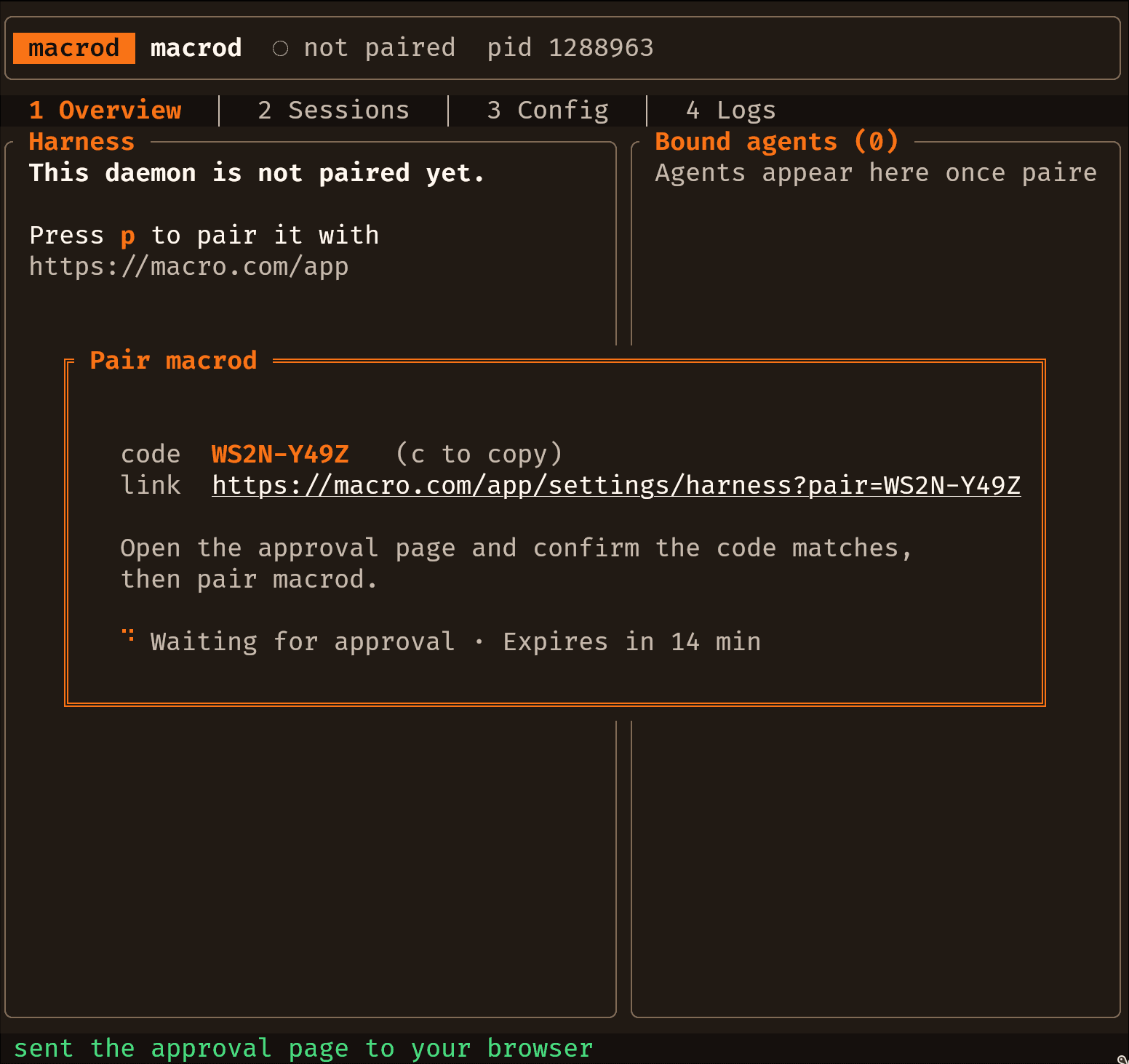
The Pair mosaicd panel shows a device code and a link to Mosaic. If you are already in the terminal overview, press p to open pairing. Press c to copy the code.
Open the pairing link, or go to Settings → Runtimes → New runtime. Enter your code and click Look up.
Check that the code and computer match your terminal, review the runtime's settings, then click Approve.
mosaicd connects automatically after approval. It saves your agent, workspace, and credential in ~/.mosaicd/mosaicd.toml (%USERPROFILE%\.mosaicd\mosaicd.toml on Windows). Keep this file private; do not commit it to a repository.
Create an agent that uses your runtime
This computer creates the agent for you. For a runtime you paired from a terminal, open Settings → Agents and click Add agent.
In New agent, set the name, @tag, and instructions. Under Where it runs, choose In your harness and pick the machine under Harness. Under Who can use it, choose Private or Team, then save. @mention the agent to start a session on your machine. A Private agent can only be mentioned by you.
Keep your runtime connected
Leave mosaicd running and your computer awake while you use the runtime. Its terminal shows your sessions, configuration, and logs. You can also check the runtime in Settings → Runtimes.
To reconnect later, run mosaicd again; it loads ~/.mosaicd/mosaicd.toml from any directory. If you revoke the runtime, pair it again before using it. Only one mosaicd can run with a given configuration at a time.
Update mosaicd
mosaicd updates itself. While it runs, it checks for a new release every hour, downloads it, and verifies its checksum and that it starts. Your mosaicd.toml and pairing are kept. If an update fails, mosaicd keeps running the current version and shows the error in its Logs tab.
- macOS and Linux:
mosaicdreplaces itself in place as soon as no agent turn is running. Your agent keeps running through the update, so its sessions and anything it started stay alive. - Windows: the new version is installed next to the running one, and the footer shows Update … ready — restart mosaicd to use it. Quit
mosaicdand start it again to use it. Themosaicdcommand always starts the newest installed version and removes older ones.
To see what the updater did, read ~/.mosaicd/logs/update.log (%USERPROFILE%\.mosaicd\logs\update.log on Windows). Each line is one JSON event: a check with the version found, a download with its size and whether the checksum matched, an apply with the versions and how the new one was started, and a startup line each time mosaicd starts, including after an update. The log never holds tokens or prompts. At about 1 MB it moves to update.log.1.
To update right away, run the install command again and restart mosaicd.
To install a specific release, set the MOSAICD_VERSION environment variable to its tag, such as v2026.10.18.0, before running the install command. A running mosaicd still updates itself to the latest release.
To turn automatic updates off, add this to mosaicd.toml:
[update]
auto = false
or start mosaicd with MOSAICD_NO_UPDATE=1 set. mosaicd then only changes when you run the install command again.
Troubleshooting
- Your agent is missing from Quickstart: check that it is installed and its command is available in the terminal where you launch
mosaicd. For a different ACP agent, use Custom command. - Your code is invalid or expired: start a new pairing from the terminal and enter the new code. The code in the screenshot is only an example.
- Your runtime is offline: check that your computer is awake,
mosaicdis running, and it can reach Mosaic. Check the terminal's Logs tab for errors. mosaicdsays your config sets[identity]or ascopein[credentials]: delete those lines from~/.mosaicd/mosaicd.toml. The runtime's name, access, and permission bypass are set in Settings → Runtimes.mosaicdasks you to pair again after an update: it reads only~/.mosaicd/mosaicd.toml. If you started an oldermosaicdfrom a project folder, move themosaicd.tomlfrom that folder to~/.mosaicd/.
To learn more about using agents in your workspace, see Agents.